RQG 6.1.1
· One min read

This release's headline feature is a real magic point source picker: casting a spell now lets you choose where the points come from whenever more than one source is available. POW-storing crystals work as an alternate source instead of the old max-boosting hack, a Rune Priest's Allied Spirit can share Magic Points, Rune Points, and spell knowledge with its priest, spirits trapped in an item via a Binding Enchantment can be drawn on the same way, and a Spell Matrix Enchantment lets a Spirit Magic spell travel with a physical item for anyone holding it to cast.
Magic Points and natural Hit Point healing also stop being something you have to track by hand: both now recover automatically as game time passes, computed straight from the world clock instead of a manual catch-up step.
Alongside that, resolving a season's worth of pending Experience checks no longer means chasing across the Skills, Rune, and Passion tabs to find every one and opening a separate dialog for each. A new Experience Roll Session lists everything pending at once with an optional Roll All action. And a quadruped creature like a horse gets its own hit-location layout on the Combat tab now, instead of a default table layout.
Any Gear, Weapon, or Armor item can now act as a POW-storing crystal. Open the item and set a value greater than 0 in the Stored Magic Points fields: the first represents how many points are currently stored, the second the maximum it can hold. The "Magic Points Identified?" checkbox is a gate the GM can use to hide from the players that the item is a POW-storage item.
A storage item only counts as a usable source once it's both equipped and identified - equipped to match Core's "physical contact" requirement for a Magic Point Enchantment, identified so an unidentified crystal doesn't announce itself as a battery.
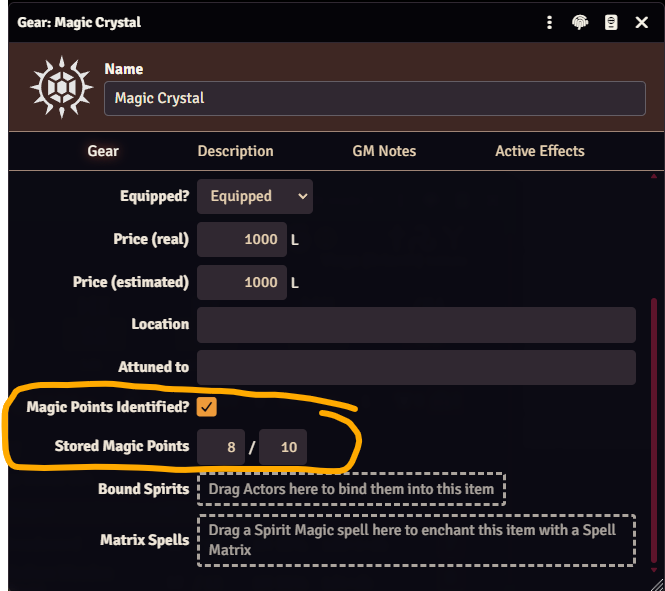
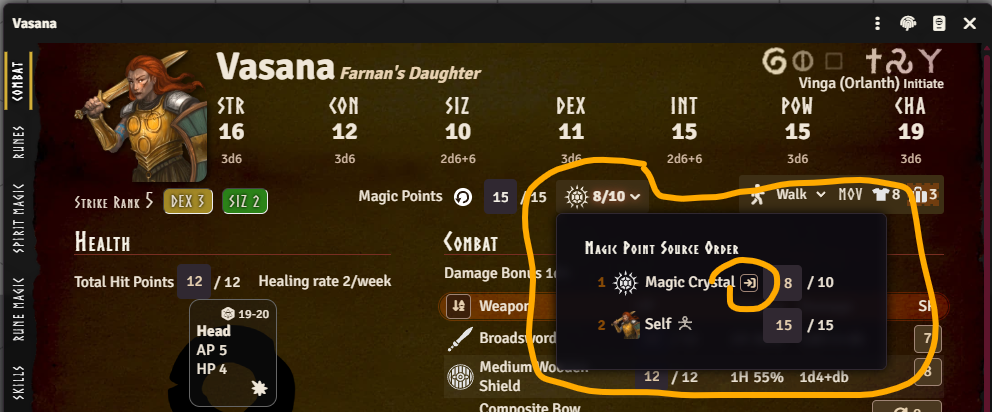
Once a GM sets a max stored points value on the item, it joins the caster's own pool and any Allied
Spirit bond as a possible Magic Point source. Which of those show up as sources at all, and in what
order, is managed from a new Magic Point Source Order popout on the character sheet, with
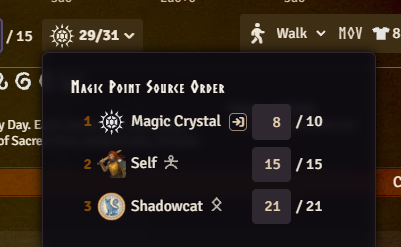
drag-and-drop reordering - the red numbers show that order. That popout also has a
 button to move Magic Points from the
character (self) into the crystal, moving as many as it can without knocking the character
unconscious.
button to move Magic Points from the
character (self) into the crystal, moving as many as it can without knocking the character
unconscious.
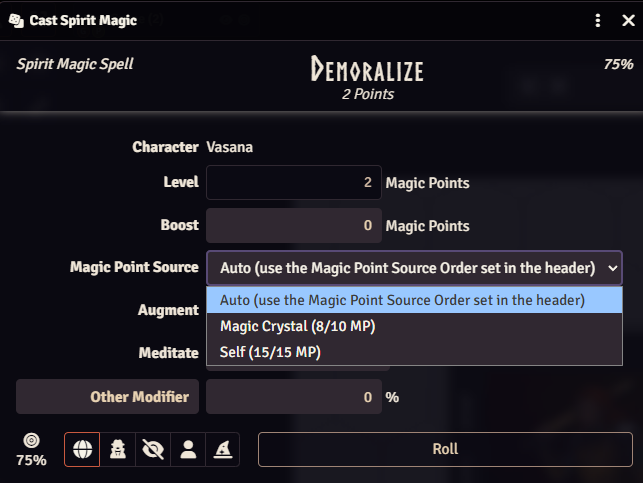
Casting a Spirit Magic spell (or boosting a Rune Magic spell with magic points) now shows a "Magic Point Source" dropdown. It defaults to "Auto," which drains through the sources in that popout's order - the caster's own pool is just one entry in that order - but you can also choose to draw from one specific source for that cast only, if you want. Every option other than "Auto" itself shows its current/max Magic Points directly, so you can tell at a glance which source actually has anything left before choosing.
This replaces the old approach of bumping an actor's Magic Point max via an Active Effect on the item, which merged a crystal's points into the owner's own pool instead of keeping them as a separate, spendable reserve. Any item still using the old active effect approach is migrated automatically the next time your world runs its migrations - no manual cleanup needed.
If you instead tracked a crystal's remaining points by hand using its Quantity field (e.g. Quantity 5 meaning 5 points left, decrementing it as points were spent), that pattern isn't covered by the automatic migration - there's nothing in the data for it to recognize. Set the item's new Stored Magic Points value/max yourself, then set Quantity back to 1 - and consider switching the item's type to Unique since you no longer need it to behave as a Consumable.
A Rune Priest's Allied Spirit is now more than flavor text. Link the bond partner from the priest's Combat tab in edit mode by dragging the spirit actor to the Allied Spirit dropzone.
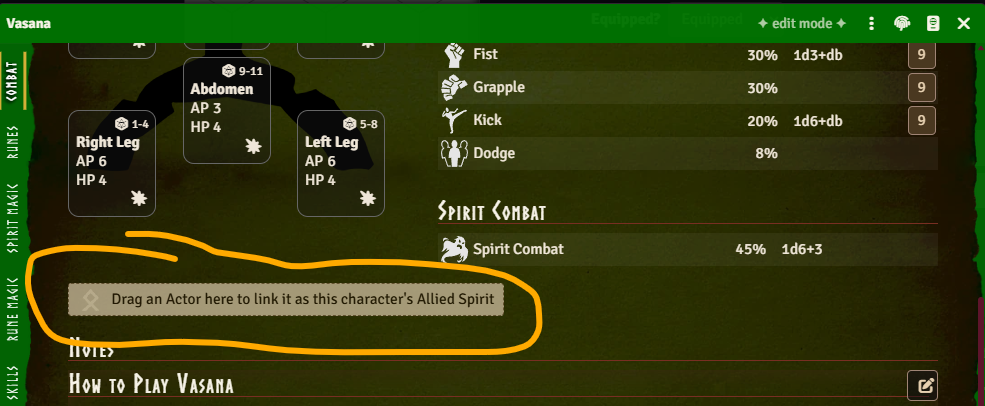
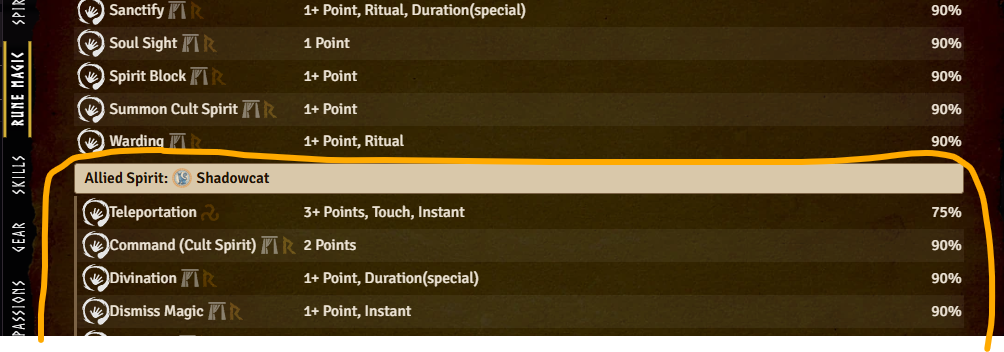
From then on - in either direction - the pair share Magic Points, Rune Points for any cult they're both initiated to, and known Spirit Magic and Rune Magic spells. That means a priest can cast a spell their Allied Spirit knows (or vice versa) by drawing on the other's points, even for spells they never personally learned - shown on the caster's own Spirit/Rune Magic tab under an "Allied Spirit:" divider so it's clear the knowledge isn't really theirs.
Shared Magic Points also get their own entry in the Magic Point Source Order popout, marked with a spirit rune so you can tell an Allied (or bound) Spirit apart from a storage item at a glance.
Rune Point sharing matches the priest's and Allied Spirit's cults by their Rqid - something cults never needed before this release, so an older cult item in your world may not have one. The Rune Magic casting dialog now tells you explicitly when a bonded Allied Spirit exists but isn't recognized as sharing a cult, instead of the source picker just silently not appearing, and the Add Rqids dialog that pops up during migrations now includes cults that lack Rqids, so it can fix this for you.
A spirit trapped in an item via a Binding Enchantment can now be linked from that item's sheet by dragging the spirit's actor onto it. It is possible to bind multiple spirits into one item, letting a single Foundry item represent something like a handful of bound crystals.
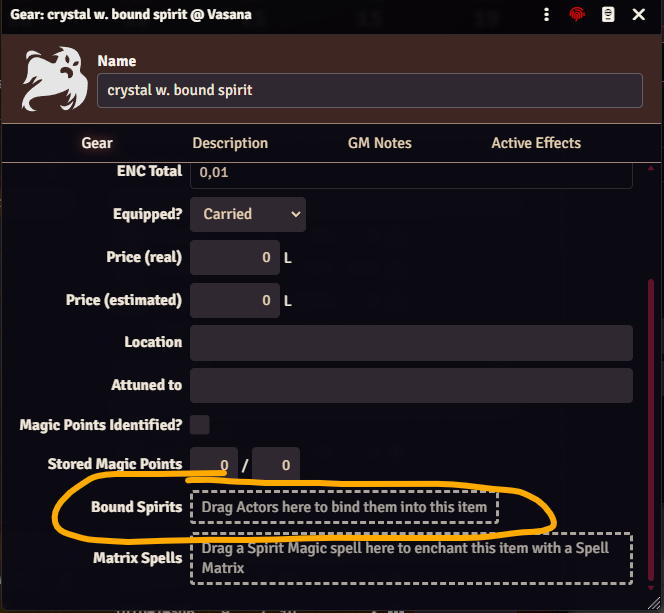
Once bound, whoever holds the item - in other words, has it equipped - can cast any Spirit Magic spell the spirit itself knows, shown under its own "Bound Spirit:" divider.
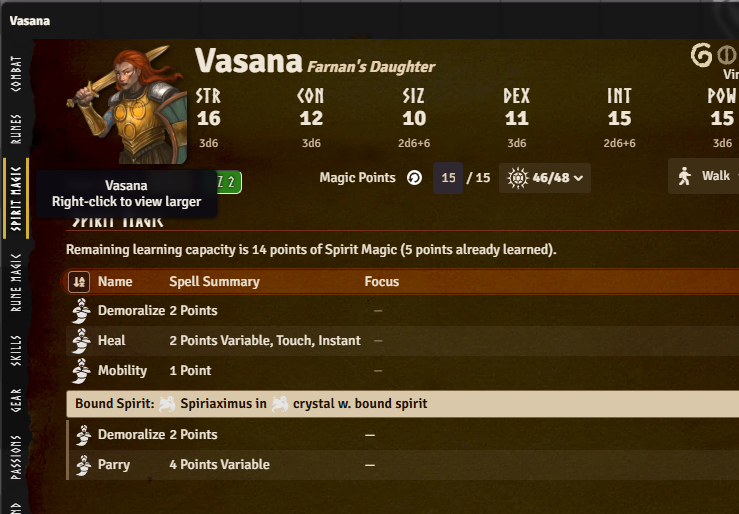
Casting can also draw on the bound spirit's own Magic Points, which get their own entry in the Magic Point Source Order popout.
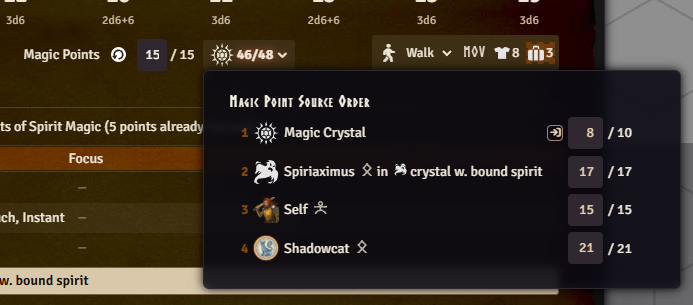
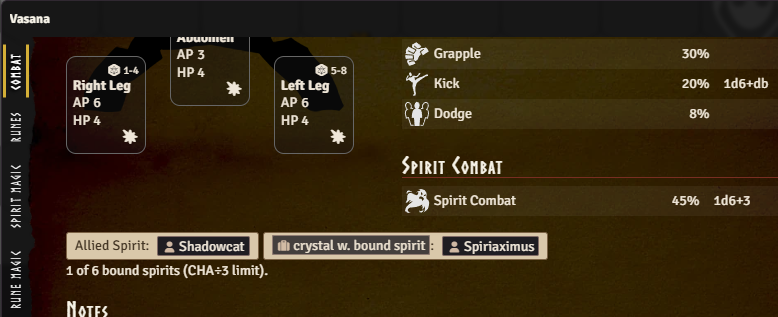
Draining a bound spirit's Magic Points to zero releases it from the binding, and a cast that would do that prompts for confirmation first. The cap of CHA / 3 total bound spirits is shown as an informational count on the Combat tab, with a warning if you go over it - since too many bound spirits should provoke a spirit rebellion.
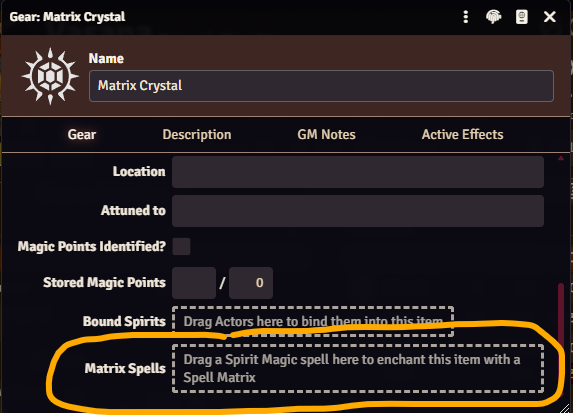
Any Gear, Weapon, or Armor item can now carry a Spell Matrix Enchantment: drag a Spirit Magic spell onto the item's sheet to enchant it, and from then on whoever has that item equipped can cast that spell, whether or not they personally know it.
Casting it works straight from the actor sheet on its own entry on the Spirit Magic tab under a "Matrix:" divider, alongside any existing "Allied Spirit:" and "Bound Spirit:" dividers.
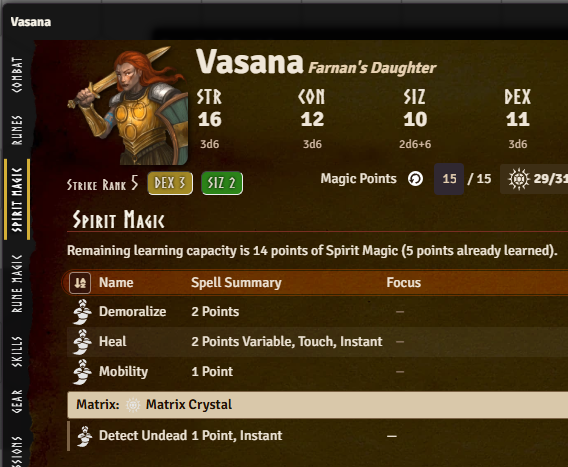
It uses the caster's own POW×5 chance and their own Magic Points, drawn through the same source picker as any other spell. A matrix spell doesn't count against the holder's own CHA spell-point limit, since it was never one of their personally-learned spells.
An item isn't limited to one enchanted spell either: drop additional Spirit Magic spells onto the same item and each gets its own chip on the item sheet, with its own GM-only points field and its own delete button (points are only editable when the underlying spell is variable - a fixed-level spell shows its points read-only). In practice that means you could, for example, have several matrix-enchanted spells embedded in a single sword.

Before this release, the closest thing to a matrix was the "Held in Matrix" checkbox on a
character's own Spirit Magic spell (isMatrix) - it only ever excluded that spell from the caster's
own CHA spell-point limit, with no connection to a gear item. GMs ended up overloading that one
checkbox for two different situations: a real physical matrix, or a bound/allied spirit's spell
copied onto the character just so it wouldn't count against their CHA limit. This release's Allied
Spirit and Bound Spirit spell-sharing now handles the second case properly, so the checkbox is
superseded - it still exists and still works exactly as before, but should be treated as deprecated.
There's no fully automatic migration for it, and there can't reasonably be one: nothing in the data
says which of the two situations above an isMatrix spell represents, and for the real-matrix case,
nothing says which physical item (if any) it was meant to live in - both are always a GM call.
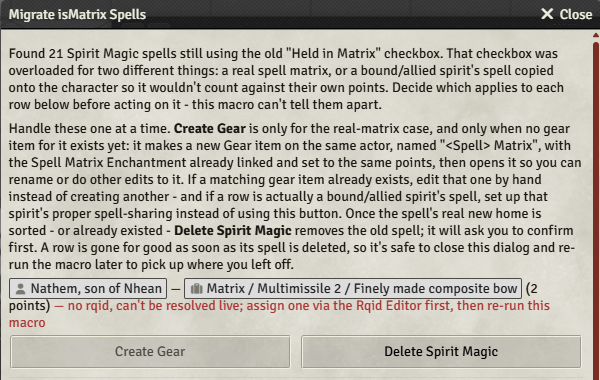
To make it easier to find and convert them, a "Migrate isMatrix Spells" macro in the "System
Macros" compendium (folder "RuneQuest Glorantha System/Macros") lists every isMatrix spell in the
world, with the actor and spell as clickable links and the spell's Focus text shown - many GMs use
that field to note which item a matrix should live in. Each row lets you handle that spell at your
own pace:
Neither action fires until you choose it, and a row you resolve just stops showing up the next time the macro runs.
Enchanting a matrix only stores a link to the spell (a Rqid) plus the number of points enchanted into it - the spell's own mechanics are never embedded on the item or copied onto it. Every time the matrix is cast, the system resolves that Rqid fresh against whatever world or compendium item currently matches it, so a later correction to the spell (or an update to the compendium it came from) is picked up automatically instead of the matrix carrying a stale copy. It's a new way for an item to grant a spell in this system - the same Rqid lookup that already backs cross-references elsewhere, applied here to resolve a spell's mechanics live rather than storing them.
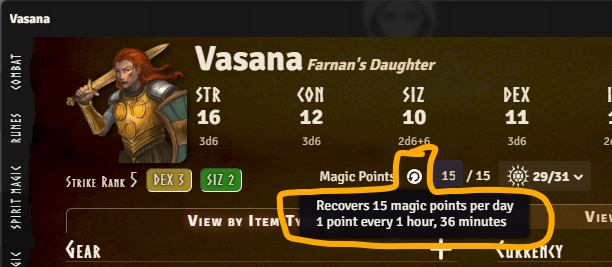
Magic Points now recover on their own as game time passes, computed straight from Foundry's world clock. Advancing that clock is a calendar module's job (e.g. Calendaria, GG Calendar, or Seasons & Stars) - Foundry itself has no built-in way to move it forward, so without one there's no game time for this to catch up against. Simply opening a character's sheet is enough to catch it up, and so is the world clock advancing while the sheet is already open.
A new recovery-rate indicator next to Magic Points on the character header shows the resulting points/day and time-per-point on hover.
A gift or HeroQuest effect that speeds up or slows down recovery can target the new
system.attributes.magicPointRecoveryRateFactor field directly with an Active Effect - e.g., a
Humakti gift doubling recovery speed could OVERRIDE this to 2, in effect halving the time it takes
to recover a Magic Point.
For GMs who'd rather not have any silent auto-recovery at all, a new Automatic Magic Point Recovery world setting turns this off entirely, so Magic Point recovery goes back to being applied by hand. The default for this setting is on, so you need to opt out if you don't want this.
Natural Hit Point healing now works the same way as Magic Point recovery: it's computed from elapsed game time instead of anything applied by hand. Each wounded hit location recovers its own healing rate in points, applied as a lump at the end of each elapsed game week rather than prorated, matching the Core rule. A location with more than one wound splits the recovered points evenly across them, with any remainder going to the lightest wound, and a severed or useless location's hit points still recover naturally even though regaining the use of the limb still takes magic capable of regrowing it.
This only applies to player-owned characters - NPCs are unaffected and still need their healing applied by hand, same as before. Whether a character was actually resting - which Core requires for natural healing to apply - isn't tracked or enforced either: healing is applied automatically each elapsed game week regardless. There's no per-character override for this; the only control is the Automatic Natural Healing world setting, which turns automatic healing off entirely for GMs who'd rather enforce that condition by hand instead. The default is on, so you need to opt out if you don't want this.
A new menu item on the actor sheet header opens a single-screen session listing every pending Experience check on the character at once - skills, Runes, Passions, and POW - with an optional Roll All action and a fixed/random gain toggle, instead of working through each one's own Improve dialog in turn.
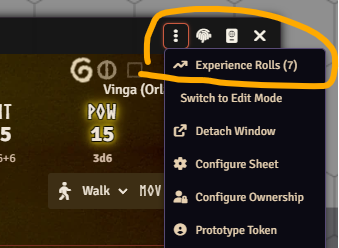
Each row in the session shows what you need to know to make the call before rolling:
+1d3-1 vs +1d6% in the screenshot below).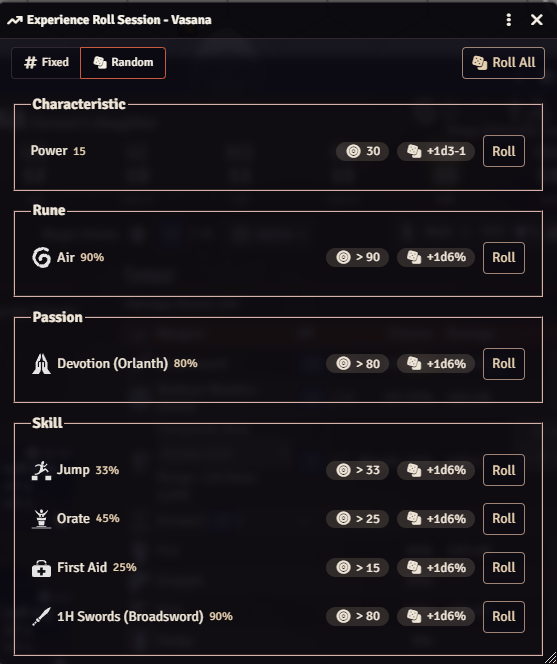
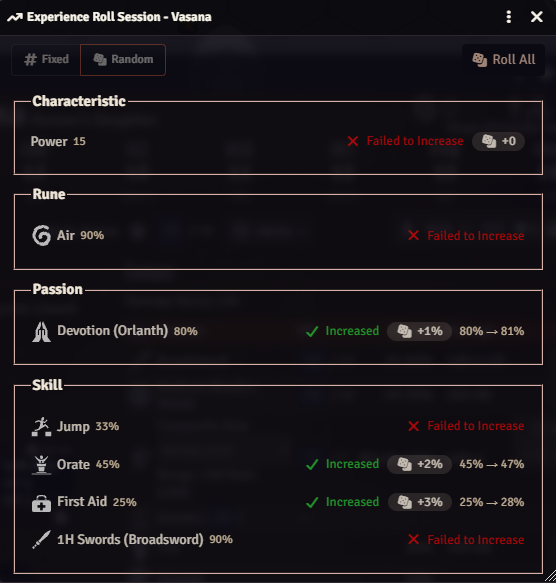
Rolling through the per-item improvements leaves a summary of how each improvement attempt went, so at the end you will have an overview of how lucky you were. Rolling also generates chat messages for the improvement rolls, and if you do a "Roll All" you get a combined chat message for all the rolls at once.
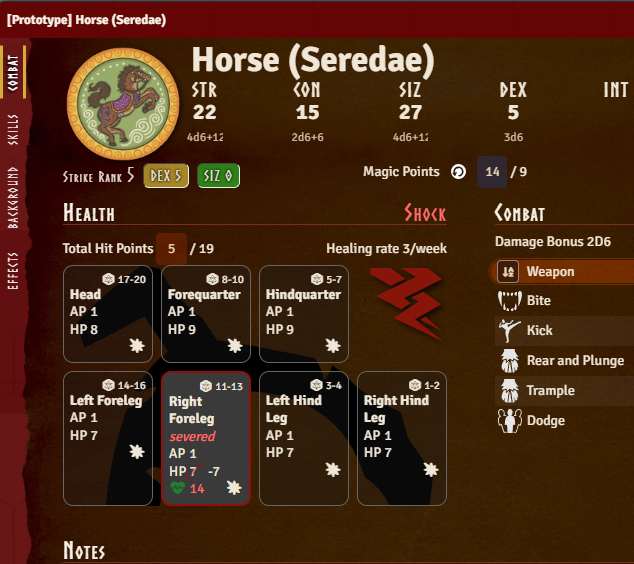
The hit-location visualization on the Combat tab - previously laid out for humanoid actors only - now recognizes quadruped creatures too, based on their hit locations, and shows them against their own silhouette (head, forequarters, hindquarters, legs) instead of a default table layout.

This release follows up on 6.0.0 with a big batch of bug fixes, plus a new Research path for improving Skills and Runes, as well as a fix so healing a serious abdomen wound now restores the useless legs it caused.
I was actually worried about more serious bugs after 6.0.0, especially since I'd just migrated to using Foundry's data models, which are far stricter about what values a document is allowed to have than the plain objects the system relied on before. Apart from the wiki module's invalid compendium data (see Invalid Weapon/Spell Data Cleanup below), nothing major has turned up.
I've also been actively hunting for discrepancies against the rules and found a few minor ones: a wrong special success range for a 6-7% ability chance, and a 75%+ training restriction that blocked every skill regardless of whether it can gain experience or not. This release also includes several visual fixes for the v2 sheets.
Some older wiki module compendium content shipped with two values that don't match the current data model and get rejected by Foundry's schema validation:
damageType: "cut"
instead of Slash, which could show up as "Failed to initialize Item" console errors and make
the attack unusable.isRitual value from an authoring typo.Both trace back to the wiki module's compendium content, present through v1.3.5 (2025-05-25) and fixed in v2.0.0 (2026-07-18). Any item still carrying the invalid value is now repaired automatically on load, regardless of wiki module version — but updating to v2.0.0 or later is still recommended, since it fixes the source data too.
This only matters if you imported one of the affected items — the standalone Claw, Rip, or Gore weapon, a Brown Bear, Harpy, Shadowcat, or Tusker (which embed them), or the Ban spell. If that happened from wiki module v1.3.5 or earlier while running RQG 6.0.0, the invalid value could have been silently replaced with a valid-but-wrong default instead of causing a crash — e.g. a Claw attack showing "Crush" instead of "Slash", or Ban not marked as Ritual. That data now looks normal and can't be detected or corrected automatically, so it's worth a quick check:
If you imported on an earlier or later RQG version, you're not affected — nothing to check.
Skills and Runes can now be improved through Research on the Improve Ability dialog, alongside the existing Experience and Training paths — mirroring the Research option Characteristics already had. The qualifying roll matches the one used for Experience; on success, the gain is a flat +1% or 1D6-2, chosen before rolling. As with Training, Research is not available for Passions. That it has been missing until now was an oversight.
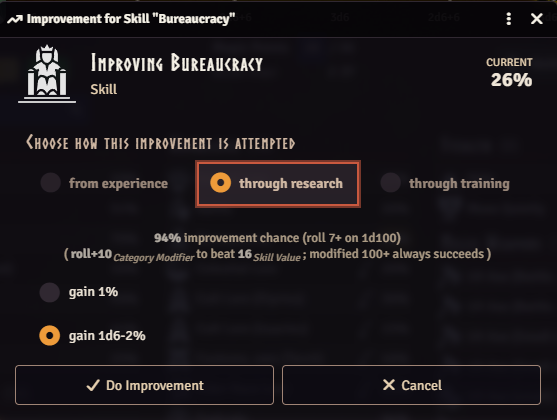
A few related bugs in the Improve dialogs were fixed alongside this:
A serious wound to the abdomen (damage at or above the location's max HP) makes the attached legs useless until it heals. Healing that wound back below the threshold was supposed to restore them, but the healing logic always reported no legs to restore, so they stayed useless forever even after the wound had healed. Healing an abdomen wound now correctly restores the legs — to healthy, or to wounded if a leg had taken damage of its own. A leg that's useless from its own damage rather than the abdomen wound is left alone.
The portrait on the v2 character sheet is no longer clipped by the window top, and its drop-shadow now follows the image's own shape instead of a fixed rectangular box — so round or transparent portraits no longer get a mismatched square shadow. Non-square images are no longer cropped or distorted. Right-clicking the portrait now opens Foundry's native image popout for a larger, on-demand view of the full resolution image.
connectedTo/hitLocationType data that was stored as a stale display name
instead of an rqid, which silently broke limb-useless and healing checks with no error

This is a major release that requires Foundry v14. It also changes what documents are picked up by Rqid prioritization (see below), which can alter existing worlds. Given the scope of the changes, expect a higher risk of new bugs than usual.
Make sure to back up your world before updating!
This release is a large overhaul of the system internals, with the overarching goal of moving this now six-year-old system into Foundry v14's way of doing things. The character and item sheets have been rewritten to use Foundry's V2 document sheets, the data layer has been migrated to use DataModels, and the world migration now generates a detailed report of what changed.
There are also many smaller improvements — from new fields that Active Effects can target to affect a weapon's attack chance, to a combat tracker button that resets the active combatant to the first one. See below for the full list of changes and bug fixes.
Both of these changes are breaking: they can alter which linked documents are shown in your world after upgrading, and the RQID API functions used by custom macros/modules are changed — see below.
Previously, when resolving an RQID (e.g. to link a rune, journal, or spell to its canonical document), a matching World document was always preferred over a matching Compendium document, no matter what Priority value each had. From this version, RQID resolution instead picks whichever matching document has the highest Priority — World or Compendium — and only falls back to preferring the World document when priorities are tied.
In practice, this means: if you have customized or overridden a system document in your World (for example, a house-ruled skill or journal description), and the shipped Compendium version of that document ends up with an equal or higher Priority, the Compendium version may now be used instead of your World override. To keep your World version taking precedence, open it in the RQID editor and make sure its Priority is set higher than the Compendium document it's meant to replace.
If you have custom macros or modules calling the RQID API directly, two methods changed shape as part of this update:
Rqid.fromRqidRegexAll(regex, docPrefix, lang, scope) has been renamed to Rqid.fromRqidRegex,
and its scope string ("world" / "packs" / "all") is now an options object:
Rqid.fromRqidRegex(regex, docPrefix, lang, { source: "world" | "packs" | "all", mode: "all" | "best" }).Rqid.fromRqidCount(rqid, lang, scope)'s scope string is likewise now an options object:
Rqid.fromRqidCount(rqid, lang, { source: "world" | "packs" | "all" }).Existing worlds don't need any changes for this — only custom scripts/macros calling these methods directly need to be updated.
All system data — including derived values like skill category modifiers and hit point totals — now
uses Foundry's DataModels, a data layer that validates your characters, items, and other documents
against a defined structure. This is also the groundwork behind the new effect.add fields
described under Active Effects below.
Updating to this version triggers a one-time check of your existing documents against these new rules, repairing anything that doesn't match — a chance to heal documents that may have drifted out of shape over the years. This runs automatically as part of the system migration when you update. If you want to run this check again later, there's a macro for that in the "System Macros" compendium, in the "RuneQuest Glorantha System/Macros" folder.
When the system migrates your world data, it now provides a detailed migration report showing exactly what was changed. This includes change diffs and migration metadata so you can review what happened. The report is saved as a journal entry in your world, with pages listing what was performed, any issues found, and a summary. If any characters or items could not be fully repaired by the automatic migration, they are listed so you as the GM can look at them manually.
The character and item sheets have been completely rewritten using Foundry's Application V2 framework. Foundry has deprecated the old V1 application framework and will remove it in a future core version, so this move keeps the system compatible going forward. The V2 sheets are now the default for all characters and items.
The old V1 sheets are still available as a fallback (right-click the sheet header to switch), but they are deprecated and will be removed in an upcoming release.
V2 sheets support Foundry's light and dark modes, and can be popped out into their own window using Foundry's native pop-out feature — something V1 sheets could not do.
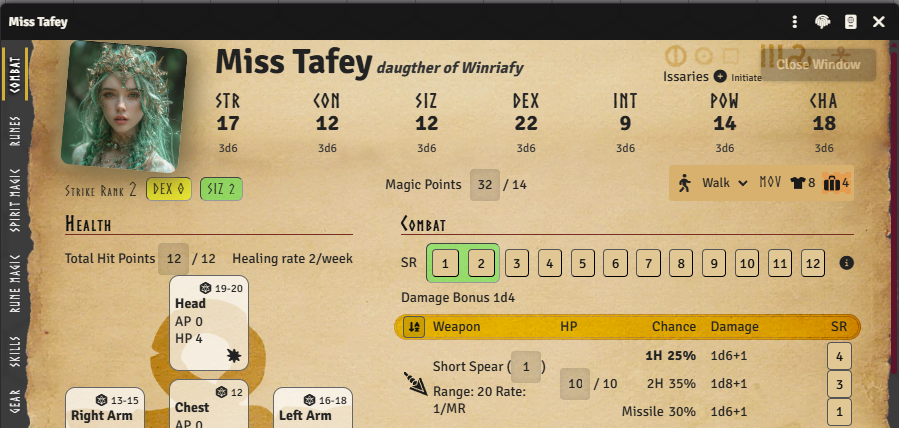
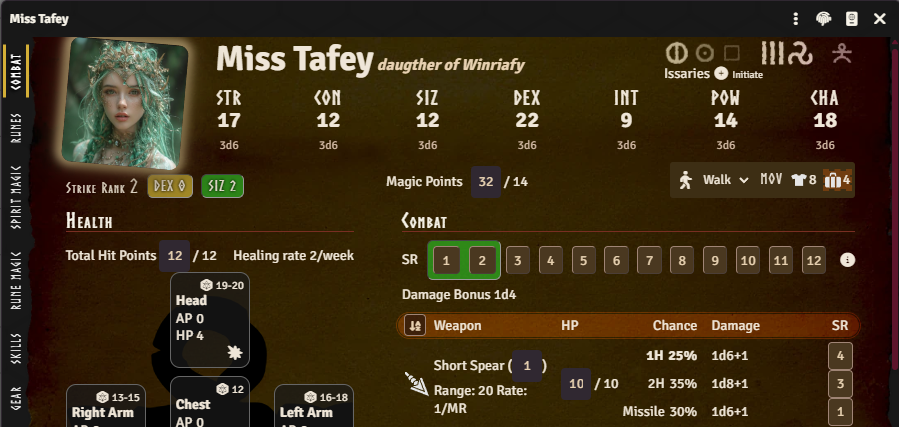
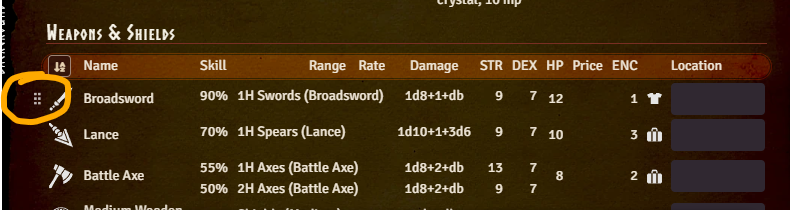
Drag-and-drop has been reworked. Hovering over a draggable row now reveals a grab icon — grab that icon to drag the item, rather than clicking anywhere on the row. Dropzones also highlight more clearly when dragging something over them, making it easier to see where an item will land.
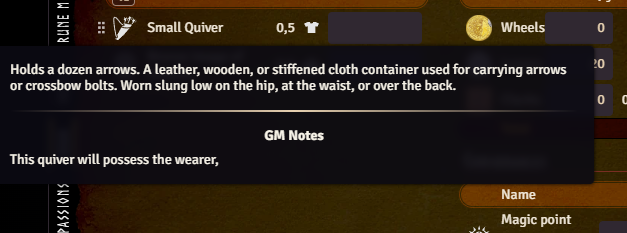
Hovering over an item's icon on the Gear, Combat, or Passions tab now shows its description in a tooltip, so you no longer have to open the item sheet just to remember what something does. If you are the GM and the item has GM notes, those are shown in the same tooltip below the description — players never see this part.
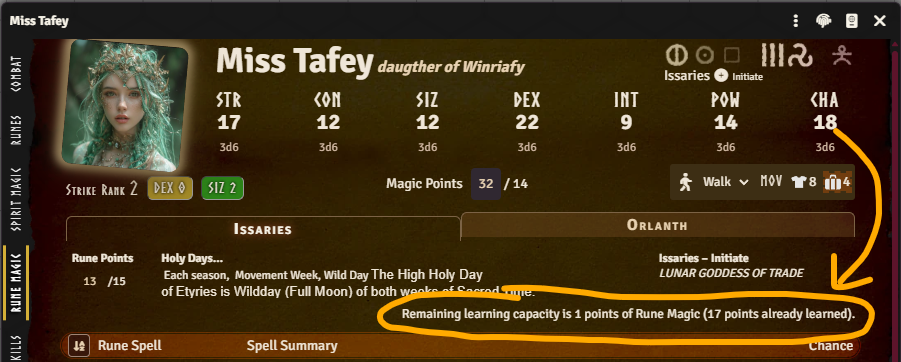
The character sheet now shows the CHA-based rune magic point limit for each cult, making it easier to see how many rune points a character can have in each cult.
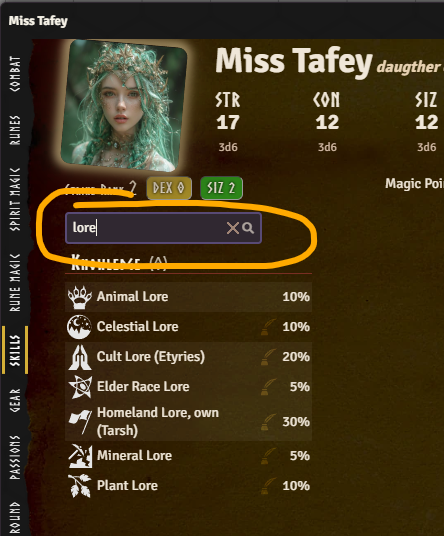
The Skills tab now has a search field at the top. Type part of a skill's name to instantly filter the list down to matching skills, hiding categories that have no matches — handy for characters with long skill lists. Clearing the field brings back the full list.
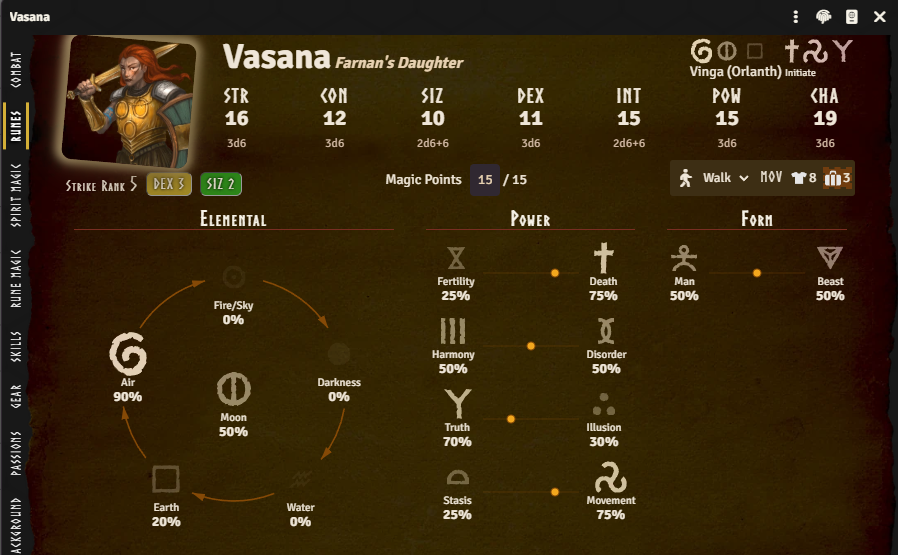
The Rune tab has gotten a visual makeover. Each rune icon's size and intensity now reflects how strong that rune is — the higher the chance, the bigger and bolder the icon. For opposed rune pairs (e.g. Harmony/Disorder), a balance marker on a line between the two runes shows how far a character leans towards one side of the pair over the other. Where a rune is positioned depends on its opposed rune setting.
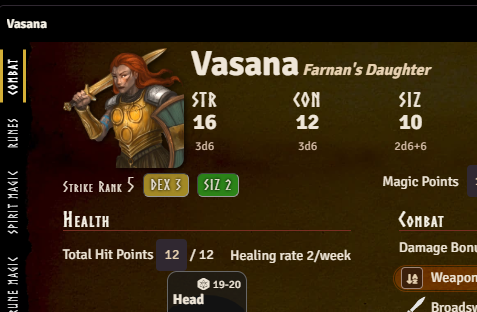
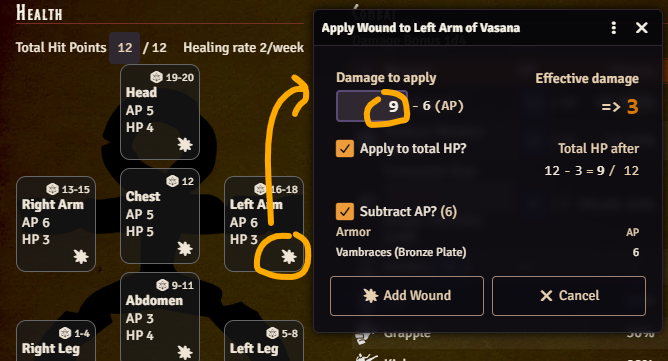
The Apply Wound dialog has had a facelift. The title now names both the character and hit location (e.g. "Apply Wound to Left Arm of Vasana"), so it's clear who receives the wound when multiple character sheets are open.
Entering the raw damage dealt shows the armor protecting that hit location (if any) — listing each equipped piece by name and its AP — plus a formula for the effective damage after AP is subtracted. If more than one piece of armor covers the location, each piece's AP can be included or excluded individually — useful, for example, with fall damage, where only soft armor applies — or all at once via a master checkbox.
A second checkbox and formula show whether (and how) the wound also reduces the character's total Hit Points, with the before/after total updating as you type. The button that opens the dialog from each hit location box also traded its old hand-holding-medical icon for a burst symbol.
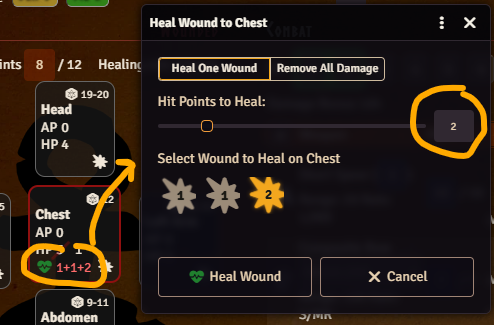
The Heal Wound dialog got the same treatment. Two buttons at the top — "Heal One Wound" and "Remove All Damage" — let you either patch up a single wound or clear every wound on the hit location in one go.
When healing a single wound, "Hit Points to Heal" can be dragged in with a slider or typed directly. Below that, "Select Wound to Heal" lists each individual wound on the location so you can pick which one to treat.
The "Heal Wound" button now uses a green heart-pulse icon, and each wound listed under "Select Wound to Heal" shows a burst icon next to its remaining damage value — the same icon used in the Apply Wound dialog.
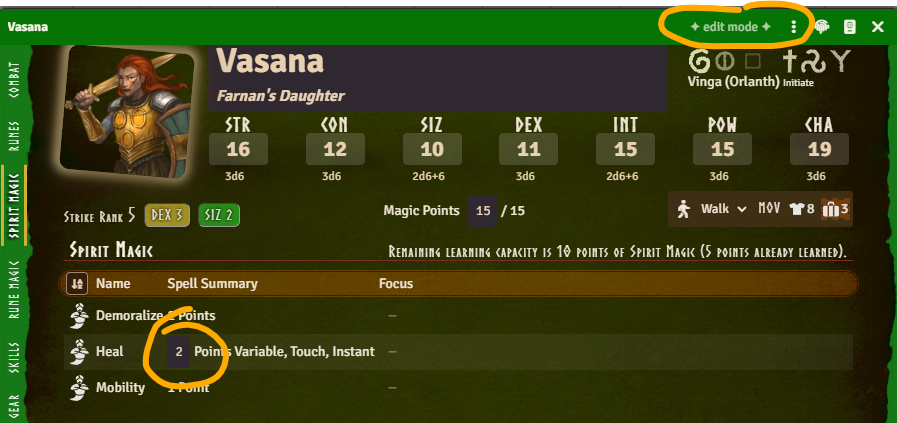
Variable Spirit Magic spells can now have their invested points edited directly from the character sheet's Spirit Magic tab. In Edit (green) mode, the points cell becomes a plain number input instead of requiring you to open the item sheet. Play mode and non-variable spells behave as before.
The Rune Magic and Spirit Magic tables no longer show a separate column for each spell attribute. Instead, each spell now shows a compact summary string (its "signature"), similar to how spells are written in the rulebooks — e.g. points, range, duration, and concentration — with the full details available in a tooltip. As part of this change, Ritual Rune Magic spells no longer have their Range and Duration silently dropped from the summary, since those values can still be relevant for ritual casting.

The system has been adapted to Foundry v14's new Active Effect format: duration is now a single value + unit instead of separate seconds/rounds/turns fields, and start time/round/turn/combat are now grouped under "start".
Your existing effects are converted to this new format automatically when you update, including
moving any legacy MP/HP max bonus paths to the new system.effect.add.magicPoints.max /
system.effect.add.hitPoints.max fields described below.
A new system.effect.add namespace exposes additive fields that Active Effects can target in ways
that weren't previously possible. None of these values could be targeted by an Active Effect before,
with one exception: max Magic Points could be boosted directly through a hack in the old version.
The DataModel cleanup removed that hack in favor of its own dedicated field, described below.
A bonus to max Magic Points — for example from a POW storage crystal. In previous versions, an
Active Effect could target system.attributes.magicPoints.max directly and it kind of worked, since
that value was calculated before effects were applied; the DataModel cleanup now calculates it
afterwards, so this dedicated field is needed instead.
A bonus to max Hit Points.
A bonus to a skill category — for example, to boost all Manipulation skills with an effect.
<category> is one of: agility, communication, knowledge, magic, manipulation,
perception, stealth, meleeWeapons, missileWeapons, shields, naturalWeapons,
otherSkills.
Bonuses to a weapon usage's attack and parry chance. As before, effects that target fields on an item (rather than the character) need to use the "Custom" application mode.
The fields are divided into melee / missile and attack / parry so effects can be limited to, for example, only melee attacks.
This could be used to create a Bladesharp effect, see below. It's a bit clunky, since you need to create a separate effect for each weapon and point strength, but it does make it possible to build a compendium of spell effects that can simply be dragged onto the actor. This handling will be improved in a future release.

This whole area of the system is still experimental. More changes to Active Effects — new
effect.add fields, other effect modes, etc. — are likely to show up in future releases.
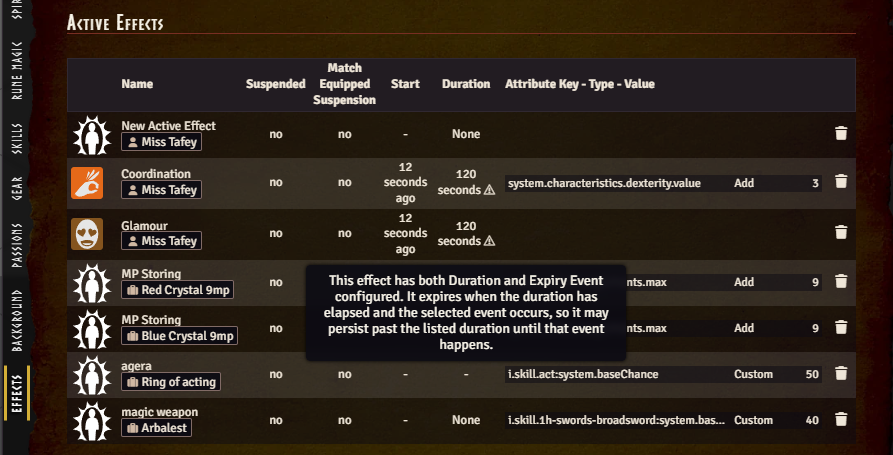
Active Effects on physical items (gear, armor, weapons) now have a "Match Suspension to Equipped Status" option on the effect itself. When enabled, the effect is automatically suspended/unsuspended together with the item's equipped state — for example, an Active Effect on a piece of armor can be set to only apply while the armor is equipped, without needing a separate condition or macro. This option is off by default; enable it on each effect where you want it, or turn on the world setting described below to have it on by default for new effects. As soon as you enable the option on an effect, its suspended state is immediately updated to match the item's current equipped status, rather than waiting for the next time the item is equipped or unequipped. While the option is enabled, the effect's "Effect Suspended" checkbox is greyed out and can't be toggled manually, since its state is now controlled automatically by the item's equipped status.
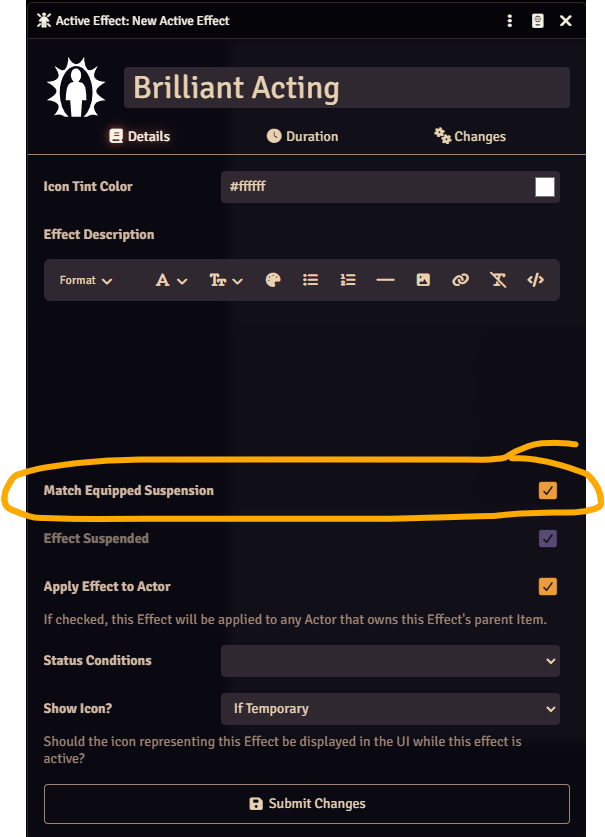
A new world setting, Default: Match Effect Suspension to Equipped (off by default), controls whether newly created Active Effects on physical items have this option enabled by default; existing Active Effects are left unchanged when you change the setting. Regardless of this world setting, you can always turn the option on or off for each effect individually.
The setting defaults to off for backwards compatibility with existing worlds, but depending on your preference it's probably a good thing to turn on, so new Active Effects on gear/armor/weapons automatically suspend when the item is unequipped.
The Active Effects tab on the character sheet used to be toggled through a hidden config flag. Now it is a GM-only world setting "Show Actor Effects Tab", making it much easier to find.
It lists every effect on the character along with Start, Duration and "Match Equipped Suspension" columns, plus an early-expiry badge whose tooltip flags possible configuration mistakes. As before, the tab itself is only ever visible to the GM, never to players.
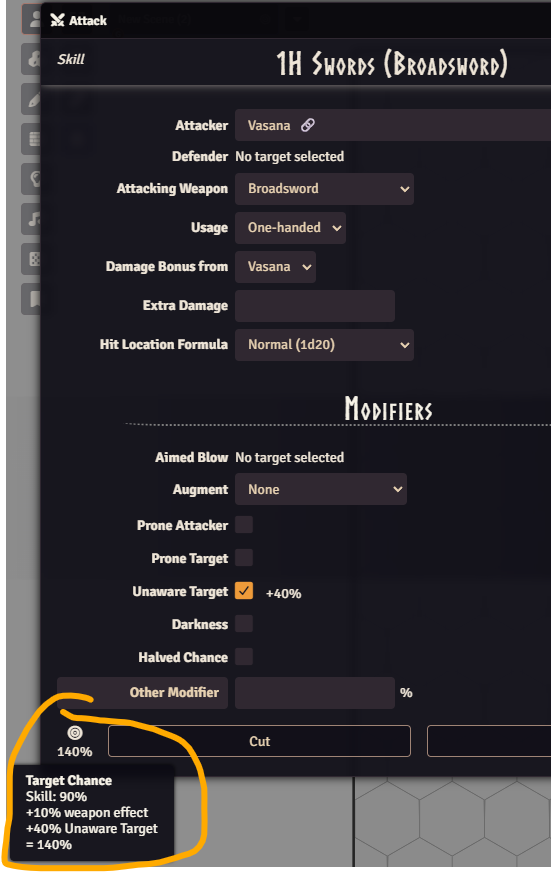
The Attack and Defence dialogs now show a tooltip breakdown of the target chance, including when a weapon effect modifier (e.g. from an Active Effect on the weapon) is in play. Hovering the chance box reveals how the total was calculated.
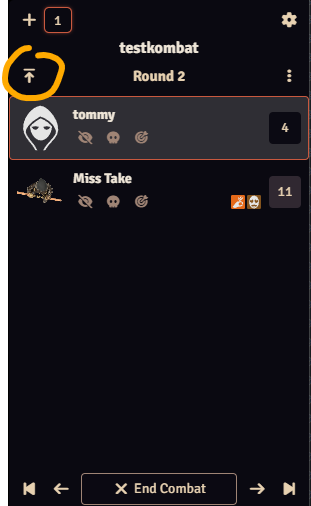
There is a new GM-only "Activate First Turn" button on the combat tracker. In RuneQuest, everyone states which Strike Rank(s) they act on at the start of the round, which can reorder who goes first — this button lets the GM jump straight to whoever ends up first in the new turn order, instead of clicking "Previous Turn" repeatedly to get back to the start.
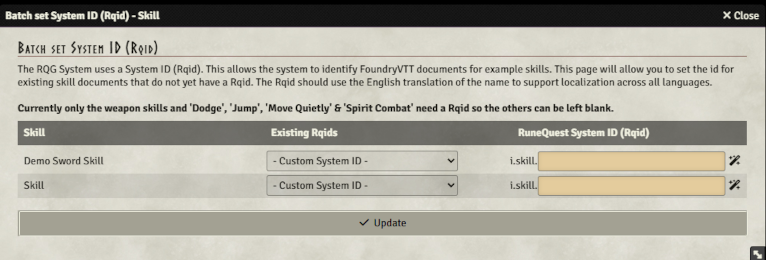
Protection token effects now use regex RQIDs (introduced in RQG 5.3.0), allowing them to work with all creature types instead of only humanoid characters.
TableResult#text in fumble rolls
()
This version fixes a migration issue in version 5.2.0. It also adds a few additional features and fixes.
In some worlds, you could get a lot of console logs, and the migration could take a very long time or even time out and stop. This version fixes that problem, and it also reduces the number of notifications that are shown by combining progress into fewer notifications.
In addition to this, the performance of the editor where you can add RQIDs to documents that are missing it is improved. It should no longer potentially crash your browser if you have lots of edits, and it should feel a lot snappier.
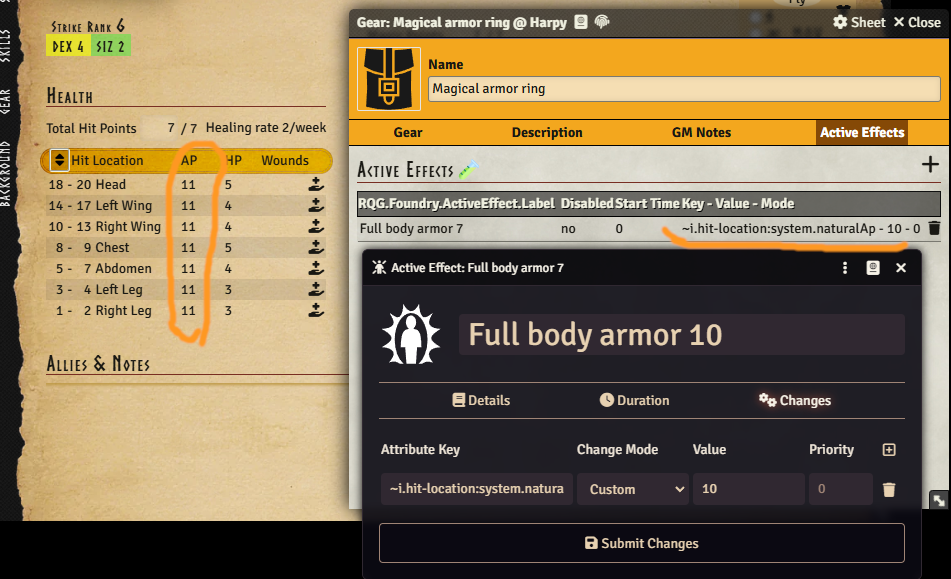
It is now possible to create Active Effects that affect multiple items. By prepending the Rqid string with a ~ the Rqid will behave as a regex and all items that match that regex will be affected by the Active Effect.
An example of what this could be used for is creating an Active Effect that applies to all hit
location items like this: ~i.hit-location. That would match any hit location like
i.hit-location.head or i.hit-location.left-wing. You can also use the normal regex syntax to
build something more complex like ~i.cult.*orlanth.* to find any cult that contains the word
orlanth.
For people who know how to write regex: yes, the dots in, for example, ~i.hit-location will be
interpreted as "any one character". But in practice that should not matter. You could write it as
~i\.hit-location to be more strict if you wanted to.
The POW characteristic now gets a warning if it falls below 18 for cult ranks that require a character to have at least 18 POW.

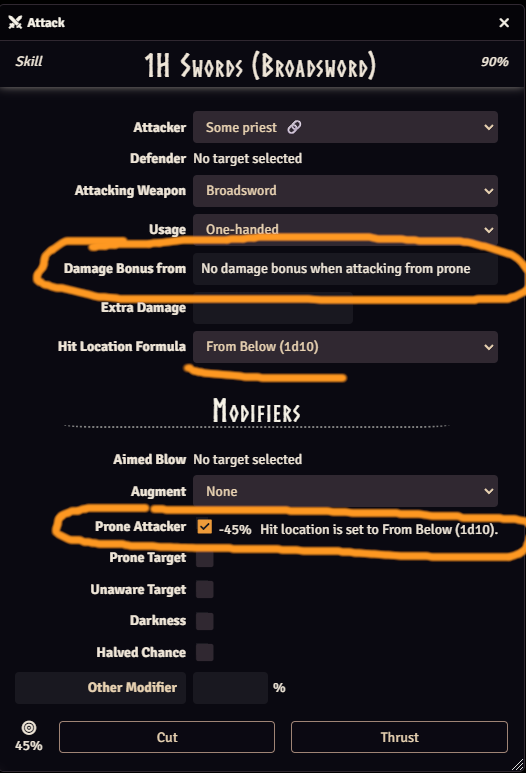
There is now a new checkbox in the attack dialog where you can select that you are attacking from a prone position. This follows the rulebook by changing the hit location die to 1d10 (From Below) and removing the damage bonus if you are not attacking with a natural weapon.
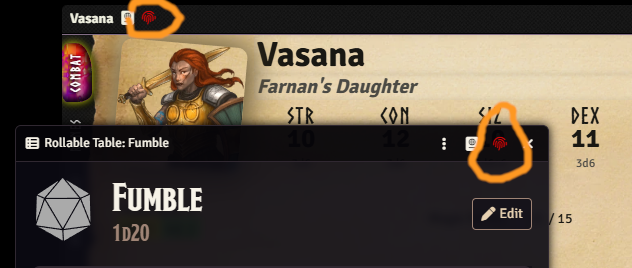
The sheet header RQID button is now colored red if the document does not have an RQID. This makes it easier to see at a glance if there is a problem.
The RQID editor previously did not handle embedded documents like pages in a journal. It now does, that, making it possible to link to a specific page for example. It could also be used to find other embedded documents like items in an actor, but I think the main use for this is pages in journals.
With this you could add links directly to pages in another journal using rqid. Copy the link from the example at bottom of the editor and paste that into any other journal.
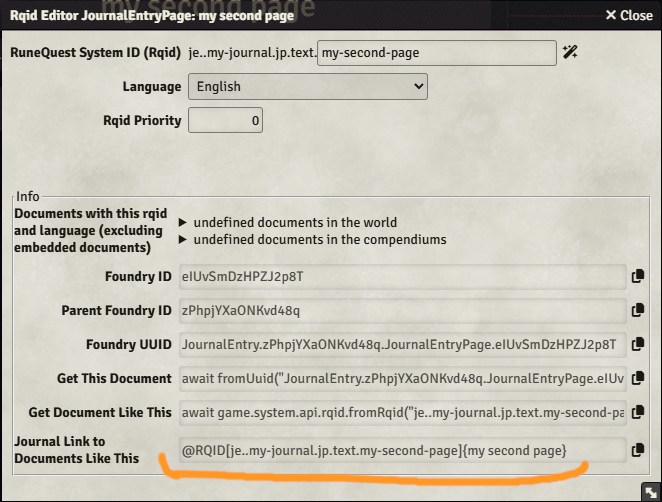
It will warn if the parent document does not have an RQID set since the embedded RQID will not work in that case, see below.
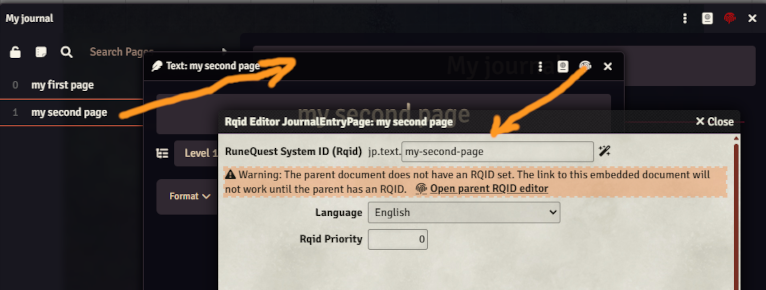

This release contains a major refactor of basically all code. It should work better, but it's quite possible that some new bugs have been introduced. Use this version with care!
The main objective with this release is to replace the old deprecated build system with a more modern solution as well as updating the typescript type system to a modern version.
This is not something that should be visible for you game masters and players, but some of the changes include:
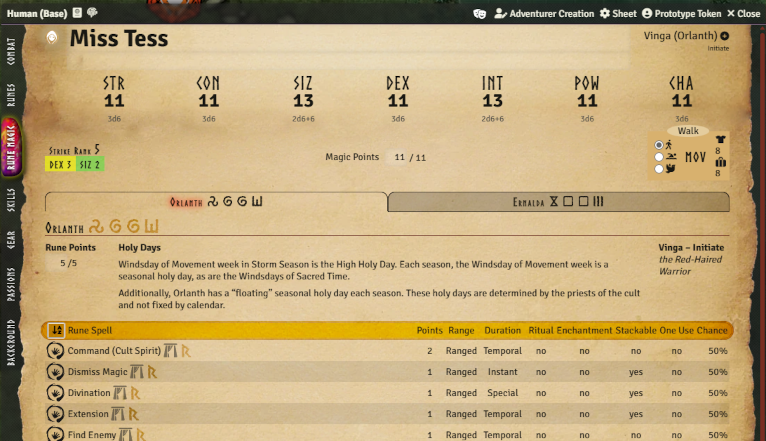
If you have more than one cult the sheet previously became very long and hard to navigate, making it hard to find the rune magic spells you want to use.
The rune magic tab on the character sheet now displays separate tabs for each cult the character is a member of, with cult-priority sorting to help you organize which cult's magic is most important to your character. The order is in priority:
When you roll against POW directly, the system will now show an informational message explaining when POW experience can be gained instead of automatically checking it for a successful roll. The experience can still be manually toggled via the context menu when appropriate.
When a successful Worship or SpiritCombat roll is made the POW experience is checked now.

The notification will not close automatically, you need to click it to make it go away.

This is a pure bugfix release.

This release adds two bigger features, and fixes a really bad bug related to combat.
The drag-ruler module is not compatible with Foundry v13. This release introduces a system native implementation that uses the new Foundry Token Drag Measurement API to color code token movement.
There is some integration with the Foundry movement actions. If you change the token movement to swim or fly, then the MOV will be updated to reflect that according to the setting on the actor sheet.
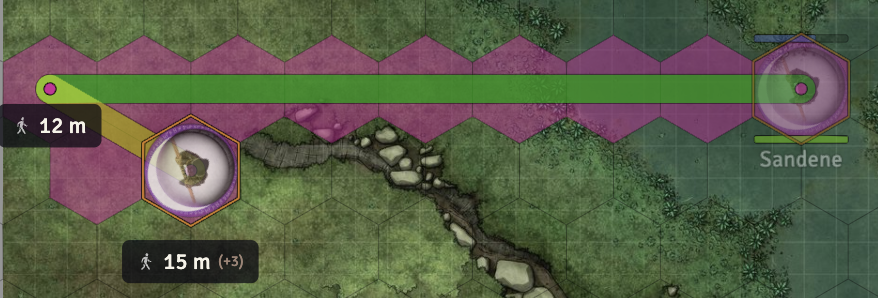
How the drag ruler looks when dragging a token. The line is color coded according to the MOV of the token and the settings (see below). The hexes / squares are colored by Foundry to match the user color.
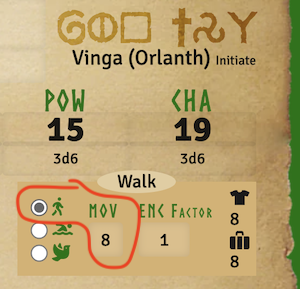
Actor sheet in edit mode where you can set the MOV for various locomotion modes. If you change the token movement, it will use the MOV values from the actor sheet to match the selected locomotion mode. see Foundry 13 Haul and Drag. The drag ruler is only visible for tokens that are in combat.
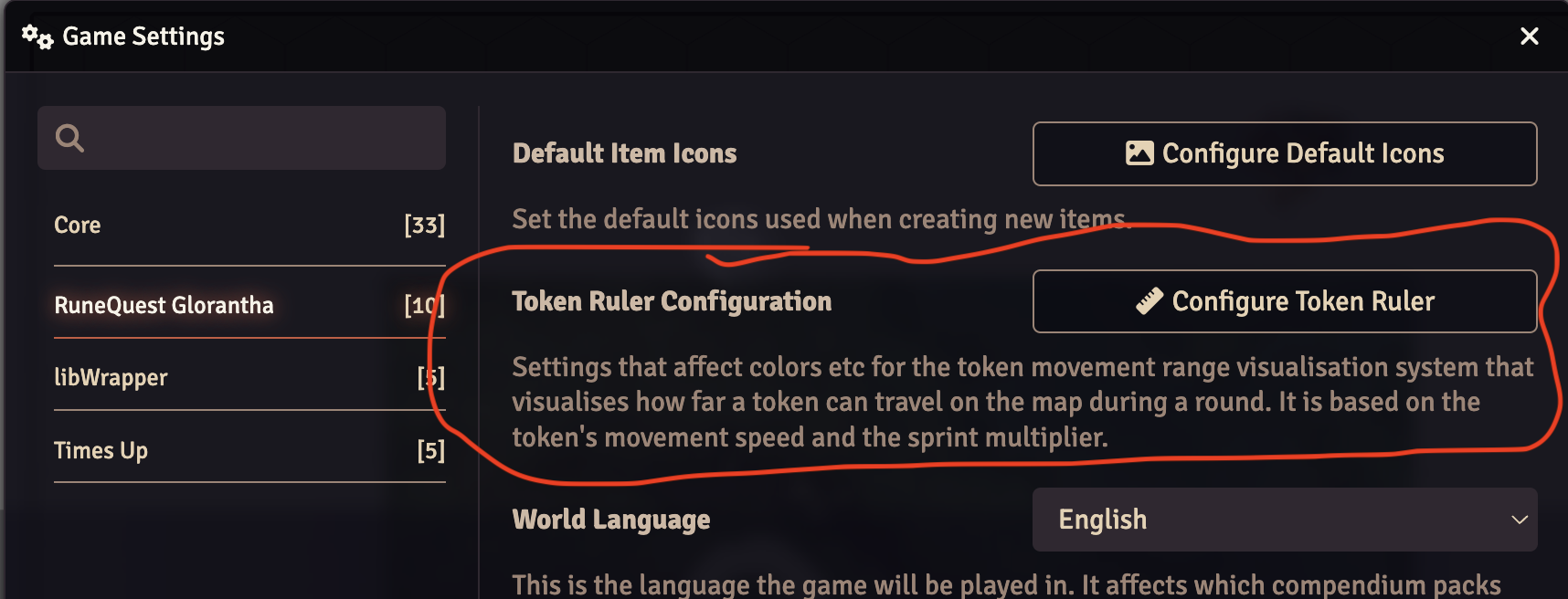
You can find the settings for the drag ruler in the system settings dialog.
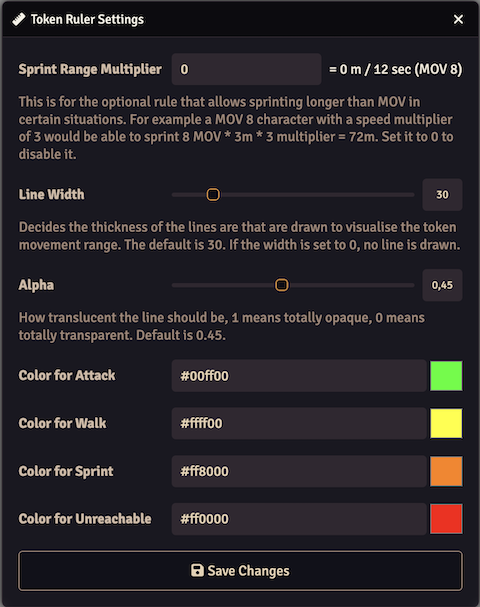
The settings dialog for the drag ruler. The settings are explained in the dialog. The colors are for the different ranges.
This adds the possibility to write scripts that run when you click on regions. It's done in the form of a region behavior called "Click to Execute Script". You add one by creating a region, go to the Behaviors tab and press +
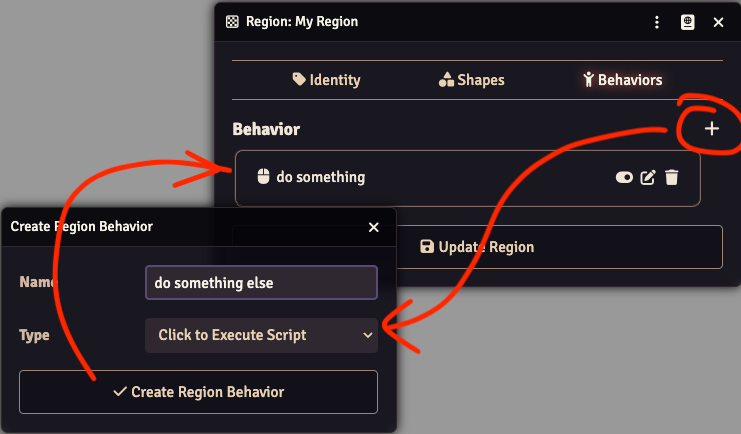
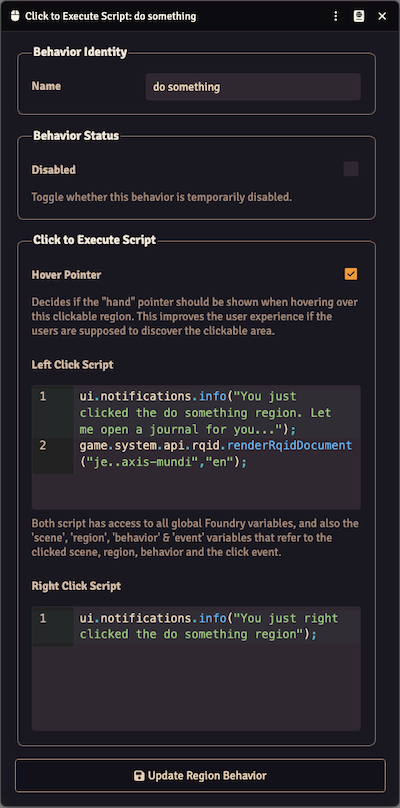
Adding a behavior will open the settings dialog. The top part with "Behavior Identity" and "Behavior Status" behaves in the same way as other Foundry behaviors. You can name and disable the behavior here.
In the next section the "Hover Pointer" lets you decide if the mouse pointer should change while hovering over the clickable region.
The two text boxes for "Left Click Script" and "Right Click Script" accepts javascript and that javascript will be run when you left or right-click on the region.
Each region can have multiple behaviors, even multiple "Click to Execute Script" behaviors. And you can have multiple regions that may overlap each other. If you have multiple "Click to Execute Script" behaviors they all will run even if they overlap.
As the hint text between the script boxes says you have access to variables in the scripts in case you want to check something about the event, behavior, region or scene. You could for example check if the shift key was pressed while you clicked and do something else in that case.

The click is only detected while you are on the TokenLayer - in other words while you are editing the regions it will not register the clicks, you have to have the top left tool selected.
This makes it quite powerful, but also less user-friendly since you need to know a bit of javascript to make something happen. Here are some snippets to get started:
game.system.api.rqid.renderRqidDocument("je..axis-mundi", "en");
// This can open anything in the world
fromUuidSync("Actor.BKBAy0w4MgvgYeKZ").sheet.render(true);

// With this syntax you can also open documents from the compendiums
(await fromUuid("Compendium.wiki-en-rqg.cults.Item.61zfpHEpM9RtE6XS")).sheet.render(true);
fromUuidSync("Macro.ufYFMHFOpuncTeiq").execute();
game.user.targets.forEach((token) => token.actor.applyDamage(5, 20));
let message = "You clicked this region";

if (event.ctrlKey) {
  message += " and held the ctrl key at the same time";
}
if (event.altKey) {
  message += " and held the alt key at the same time";
}
if (event.shiftKey) {
  message += " and held the shift key at the same time";
}

ui.notifications.info(message);

This release drops support for Foundry 12 and introduces support for Foundry 13, so you need to update Foundry to v13 before you can update this system to v5.0.0
There are a lot of changes under the hood to follow the Foundry v13 way of doing things. The amount of deprecation warnings are greatly reduced, but there are some still left since they require larger rewrites that will come later. They should not impact the functionality though.
There are not a lot of new features in this release, but the styling in various places have been updated to look more like Foundry v13. The system no longer uses the deprecated TinyMCE editor, instead it uses ProseMirror for text editing.
Also in the previous versions you did not get strike rank buttons for unlinked actors, this release will show those buttons for unlinked actors as well. See SR Buttons for more info about how they work.
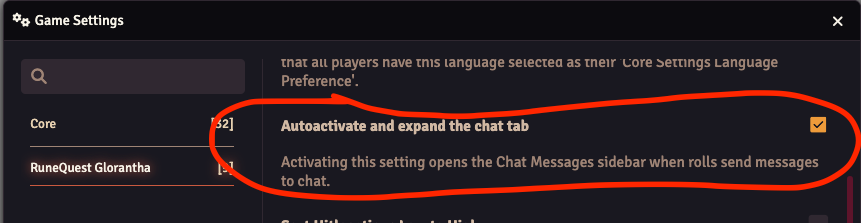
Foundry v13 have a system where you can see the last chat even if you have the chat collapsed. This RQG version introduces a user level setting so you can decide if the chat should be expanded when you roll something. That should make the feeling more similar to how it was before. It is off by default, so you need to enable it in the settings if you want that behavior.
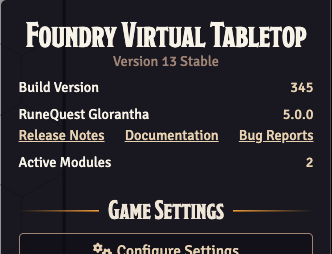
There are now links to the Release Notes (this), Documentation and Bug Reports (Github issues) under the settings sidebar for easy reference.
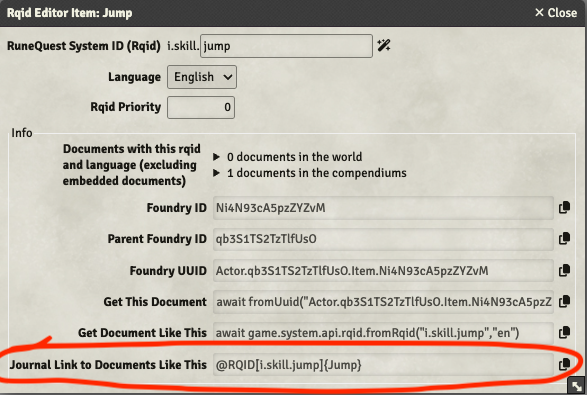
A small new feature in this version is that you can now get a premade Rqid link string that you can
paste into your journals if you want a link to a "type" of document. This is not a new feature, but
before you had to type the link manually. Now you get a premade string that you can use from the
Rqid editor that you can open via the  icon in the
document titlebar. The styling of the dialog was also slightly improved.
icon in the
document titlebar. The styling of the dialog was also slightly improved.
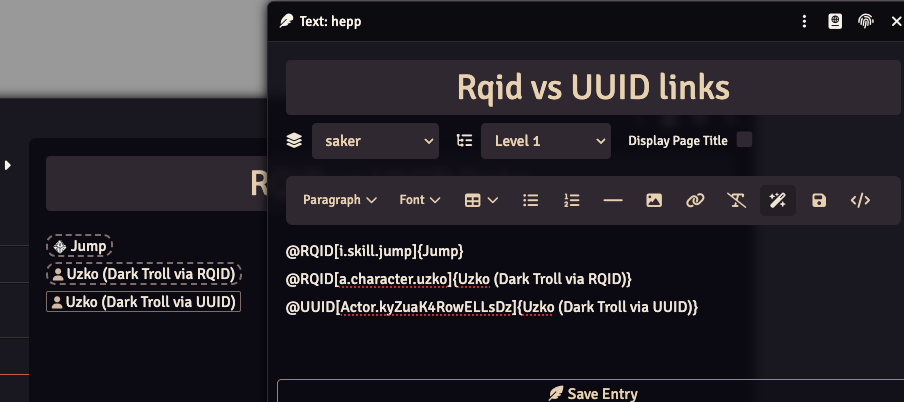
After pasting that string into the journal it will look like this. You can tell if the link is a default Foundry UUID link or a RQID link by the surrounding border. RQID links have a dashed, rounded border where the UUID links have a thin solid border without rounding instead.

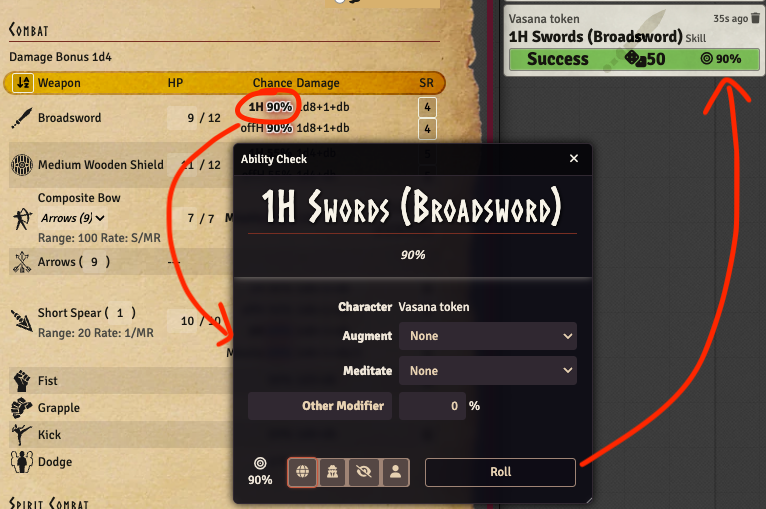
This release contains a few bug fixes and improvements, the main feature is that it is now possible to do an ability roll directly from the combat tab weapon chance.
This allows you to do a simple ability check for the weapons skill from the combat tab without initiating a full combat flow. A single click on the percentage chance will open the ability roll dialog for the skill row clicked. Double-clicking will roll directly to chat without any dialog in the same way any other ability roll works.